
- Log into portal.azure.com as your administrator account
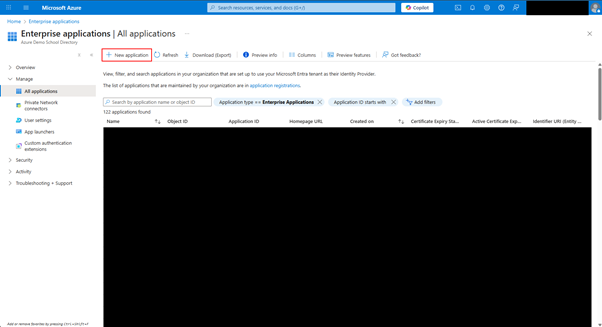
- Create a new Enterprise Application to delegate the SMTP permissions
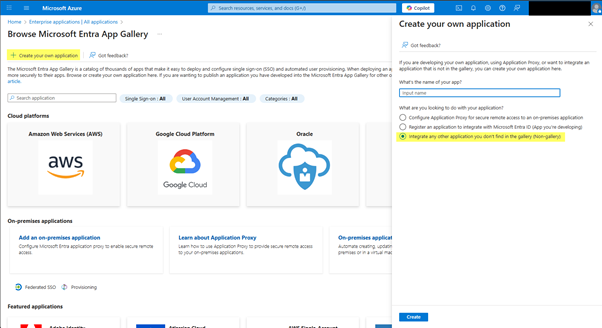
- Create your own application. Give the application a meaningful name, e.g. “TrackOne SMTP”. Click create
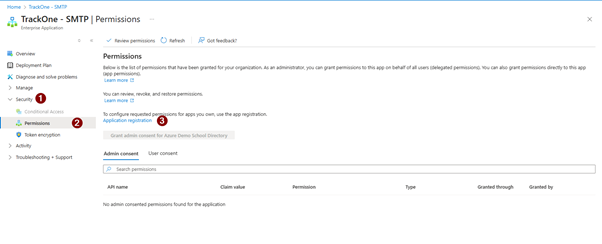
- Navigate to API permissions by navigating to Security > Permissions > Application registration
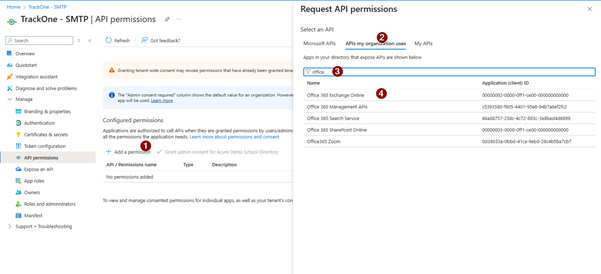
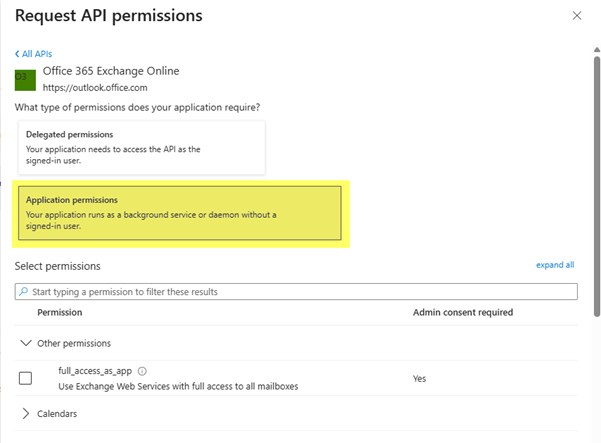
- Choose “Add a permission”, select the APIs my organization uses, search for office and choose Office 365 Exchange Online
- Select application permissions, scroll down and expand SMTP and tick SMTP.SendAsApp
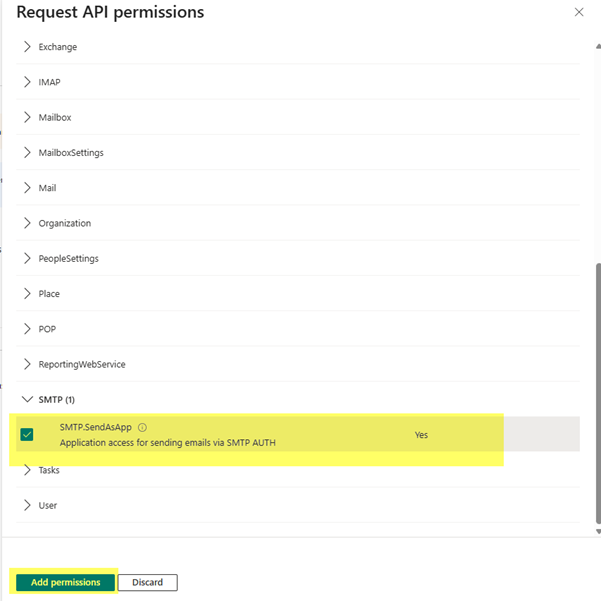
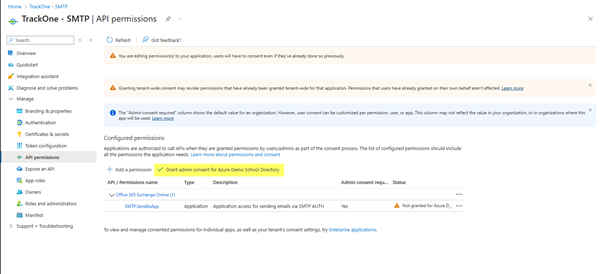
- Choose “Grant admin consent for [ORGANISATION]”
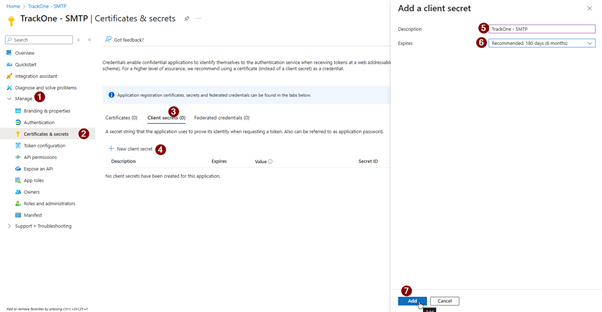
- Create a Client Secret by navigating to Manage > Certificates & secrets > Client secrets > New client secret. Name it appropriately and select an expiry date. Click “Add”
- Log into your TrackOne instance and navigate to Administration > Configuration > System > Email (tab). Click the edit button or the new button.
- Enter the following:
SMTP Server: smtp.office365.com
From Address: An email in your exchange that has Send As permission
From Name: Name of email box
Authentication Type: Select Microsoft Exchange (OAuth 2.0)
Port: 587
Tenant ID and Client ID from the Enterprise application overview page
Client Secret: The VALUE from the client secret created in step 8.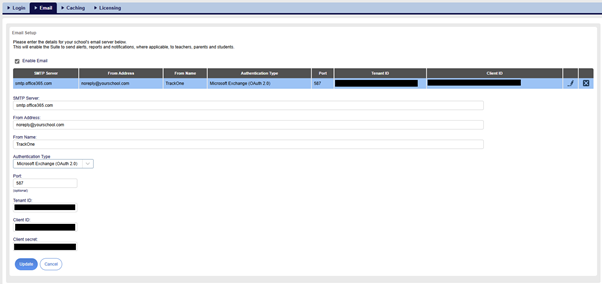
- Click save and test email.